Showing posts with label from. Show all posts

How to print directly from your phone

Thursday, November 24, 2016


How to print directly from your Android phone Android tip: How to print directly from your phone
Got a photo, a web page, or a PDF form on your Android phone that you’d like to print? Nope, there’s no need to send the document to your PC or Mac—and no, you don’t need a newfangled, web-connected printer, either.
All you really need, in fact, is a) a standard USB printer connected to your desktop or laptop, b) Google’s Chrome web browser, and c) an Android app that works with Google’s handy (and free) “Cloud Print” service.
Google Cloud Print select printer Android 300x260 Android tip: How to print directly from your phone
Just select your Cloud Print-connected printer to start printing documents straight from your Android phone.

What is Cloud Print, you ask? Well, it pretty much is what it says: a feature that lets you print documents and photos from the web, your phone, or a tablet, all via the “cloud.”
There’s a decent range of Google Print-friendly printers and apps available, and Google just released its own, official Google Print app for Android devices.
And while you can get a fancy Google Print-enabled printer that prints documents directly from the web, there’s nothing stopping you from using Google Print with the garden-variety printer you’re using right now.
Want to give it a try? Let’s get started…
  • First, you’ll need to have Google Chrome installed on the PC or Mac that your printer’s connected to. Once that’s done, sync your Google account with Chrome by clicking the menu button in the top-right corner of the browser and selecting “Sign in with Google.”
  • All set? Click the menu button again, select Settings, click “Show advanced settings” at the bottom of the page, then click the “Sign in to Google Cloud Print” button beneath the “Google Cloud Print” heading. Once you’ve signed in to Cloud Print with your Google ID, you can add your printer to your Cloud Print profile.
  • Google Cloud Print share screen 300x217 Android tip: How to print directly from your phone
    Cloud Print will let you print from any Android app with a Share option.

  • Next, you’ll need to install a Cloud Print-compatible app onto your Android phone. For this example, I’ll go with Google’s official Cloud Print app, just to keep things simple. Also, when you’re setting up your Cloud Print app, make sure to sign in to Cloud Print using the same Google ID you used when setting up Cloud Print in Chrome.
  • Done? If so, let’s try it. First, make sure both your PC and printer are turned on, then launch the Chrome web browser.
  • Open a web page on your Android phone’s browser, tap the three-dot menu button in the top corner of the screen, tap Share, then tap the Cloud Print icon. (You can also print by tapping “Share” from within any Android app.)
  • The Google Cloud Print app (or the Cloud Print app of your choice) should now open. Tap your printer from the list of available Cloud Print printers, take a quick look at the print preview screen, then tap the Print button (it’s the one that looks like an arrow, near the top of the screen). If all goes well, your printer should begin cranking out pages within a minute or so.
Source http://heresthethingblog.com
How to print directly from your phone
Read More..

How to Swipe from one message thread to the next

Tuesday, August 23, 2016

Gmail for Android swipe between threads Gmail for Android tip: Swipe from one message thread to the nextUnlike the Mail app for iPhone, the official Gmail app for Android phones lacks an obvious way (like, say, a pair of arrow keys on the actual message screen) for navigating from one email directly to the next.
Given that, I’m guessing plenty of Android users—hey, myself included—have been repeatedly tapping their way back to the inbox whenever they’re done with one message and want to skip to a new one.
Well, guess what: there’s a much easier way (as I belatedly discovered) to jump directly from one message thread (or “conversation,” as they’re called in Gmail) to the next.
Just swipe.
Specifically, you can swipe from left to right to skip to a more recent thread, or from right to left for an older one.
Pretty clever—so clever, in fact, that I’d completely missed it until now.

Add tip

Want to jump automatically to the next message after deleting or archiving the current one?
Tap the three-dot menu button in the bottom-right corner of the Gmail interface, tap Settings, General Settings, then “Auto-advance.”
You can then choose what happens when you delete or archive a message: you can advance to a newer message, go back to an older one, or return to the inbox.
Tips from http://heresthethingblog.com/2013/04/29/gmail-android-tip-swipe-message
How to Swipe from one message thread to the next
Read More..

Create a calendar event or contact directly from email

Saturday, March 19, 2016

Create an iPhone event directly from email iPhone/iPad tip: Create a calendar event or contact directly from emailAn invite to a can’t-miss event just landed in your inbox, and you want to mark it in your iPhone’s calendar before you forget—and while you’re at it, you’d like to add the sender’s name to your address book.
Well, good news: you’re just a few taps away from saving the date in your iPhone’s (or iPad’s) Calendar app, or from creating a new entry in your Contacts app—all directly from the original email message.
Here’s how…

Create a calendar event from email

  • Open the email, look for the date and time (which should already be highlighted in blue by your iPhone), tap it, then tap the “Create Event” button from the slide-up window. Once you do, an “Add Event” window will appear with the salient details already filled in.
  • iPhone Add Event screen 249x300 iPhone/iPad tip: Create a calendar event or contact directly from email
    Once you tap the “Create Event” button, an “Add Event” screen will appear with the salient details already filled in.

  • Go ahead and edit the new event or add more information (such as a location or a reminder), then tap the “Done” button. You’re all set!
  • You can also tap “Show in Calendar” to see if you’re free during that time slot, or “Copy” to copy the date and time to the iPhone’s virtual clipboard.

Create a contact

  • Go to the top of the email, tap the name you’d like to save in the “From:” field, and then tap the “Create New Contact” button.
  • A new contact form will appear with the name and email fields completed. Edit or add more details as you see fit, then tap the “Done” button.
Create a calendar event or contact directly from email
Read More..

How To Backup WhatsApp Chat Log From iPhone To Computer

Tuesday, February 16, 2016

Do you have important WhatsApp chats that you want to save or read without having to press ‘load more’ every, single, time? Or is your WhatsApp starting to slow down because of your bloated (and still growing) chat history and you want to free up some space without losing all those memories inside?
WhatsApp Chat History
With the help of iPhone Backup Extractor and WhatsApp Xtract you can save your WhatsApp chat history in your computer. With a little bit of help from Phyton you can display the chat history in browser view and read it whenever you want.

1. Backup and Extract WhatsApp Data

Connect your iPhone to your computer and open up iTunes. Back up your iPhone.
Note: Make sure that you create an unencrypted backup file as the extractor in the second part of this guide cannot handle encrypted backup files.
iTunes Backup
To extract WhatsApp data from your iPhone backed-up files, download iPhone Backup Extractor and install it. Run the program.
iPhone Backup Extractor
This program will auto-locate the location of your backup files. If your folder is not in the located folder, click the drop-down and ‘Select another backup folder’ and locate your iPhone backup folder.
iPhone Backup Extractor - Select Backup
After locating the backup files, click on Expert Mode.
Expert Mode
Then, click on ‘Application’ to expand it. Find ‘net.WhatsApp.WhatsApp’ and tick on the box next to it. Then click on Extract selected.
net.WhatsApp.WhatsApp
The extracted files will be placed in a folder named ‘Application’. The ‘Application’ folder can be located at the directory you chose after clicking ‘Extract selected’ earlier.
Before we go further, search for ‘ChatStorage.sqlite’ in the same folder. You will need this in the next step.
ChatStorage.sqlite

2. Extract & Read WhatsApp Chat History

So far, we have extracted WhatsApp data from our iPhone files. To read the chat history on the computer, we must first extract it from our WhatsApp data.
To extract, first download WhatsApp Xtract. Extract WhatsApp Xtract to a folder which is convenient for you.
You will see a ‘ChatStorage.sqlite’ in the WhatsApp Xtract folder. Replace it with your own ‘ChatStorage.sqlite’ that has been extracted from your backed up file.

To Read on Browser View

Download and install Phyton. Download the 32bit/x86 version even if you’re running on a 64bit/x64 Windows. If you choose to download the 64bit version, you’ll end up with an error when you try to use it later on.
Phyton
After installing Phyton, go back to the WhatsApp Xtract folder and search for ‘!install pyCrypto.bat’. Run it (or right click and ‘run as administrator’).
Then, run ‘WhatsApp_xtract_iphone.bat’.
WhatsApp_xtract_iphone.bat
Once it is done, it will open in your browser and all your WhatsApp chat history will be displayed.
WhatsApp chat history
Clicking on the ‘Contact Name’ will direct you to the chat history with that contact.
chat history
The HTML file will be stored in the WhatsApp Xtract folder, so you can refer back to that for future use.
WhatsApp Xtract folder

Original post is in hongkiat.com
How To Backup WhatsApp Chat Log From iPhone To Computer
Read More..

Stream video and audio directly from Android camera across a WiFi network

Friday, February 12, 2016

Camera WiFi LiveStream v1.6.0 for Android OS 1.6 +
Camera WiFi LiveStream v1.6.0
Stream video and audio from your Android device camera directly across your Wi-Fi network in real-time, to be viewed and remotely controlled in a web browser. Can be used to spy on people, a serious surveillance device or just for fun!
What will you LiveStream?

* If you want to use this application as a baby monitor, then you should download “BabyCam Monitor” which is also from dooblou – it does everything this app does but has more features specific to monitoring babies safely. *

* BEST LiveStream application available on the Android Market! *

FEATURES
1. Stream real-time live video and audio from your Android device camera to a web browser;
2. Very simple to use for everybody - no configuration needed;
3. Remotely control the camera! Takes pictures and videos using the web browser;
4. Disguise mode and touch screen locking so your device cant be detected;
5. Requires Java installed on the web browser computer;
6. Advanced settings to tweak performance;
7. Choice of streaming resolutions;
8. Only uses a WiFi network – does NOT support 3G;
9. LOTS more features in development.

Whats in this version:
Front camera support

More Info:
https://market.android.com/details?id=com.dooblou.SECuRETLiveStream


Download :
Camera WiFi LiveStream v1.6.0

Mirror:
http://www.filefat.com/usd9mu1t27ky
http://www.multiupload.com/8ZSVAPNUIU
Read More..

Escape from Doom

Wednesday, March 4, 2015

Free Download APPS, APK, Games, Thema. Android Offline Full Version

Escape from Doom

Escape from Doom

Escape from Doom

Escape from Doom

Escape from Doom

Escape from Doom


Description
4/5 "a great experience" - 148apps.com 4/5 "Escape From Doom benefits from some outstanding visuals" - Modojo.com
8.5/10 "Escape from Doom is a lot of fun and a perfect compliment to your gaming regime this October" - ArcadeSushi.com
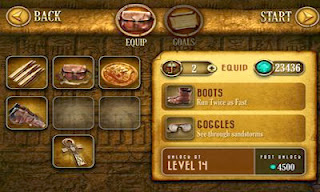
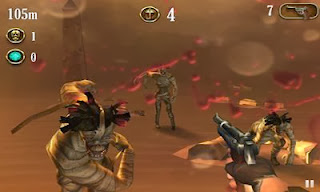
You disturbed their eternal slumber, you evoked their vengeful wrath, now you must Escape from Doom! Transported back in time to Egypt during the treasure-hunting craze of the 1920s, you barely escape from a crumbling tomb only to find yourself surrounded by the mummified guardians of the stolen treasure. Will you escape with your life? Or join the ranks of the dead? In this endless runner and first-person shooter mashup, its up to you to run as far as possible before succumbing to their ceaseless chase. But the power is in your hands! Collect emeralds during your escape to purchase useful weapons and upgrades, like the dual revolvers and crossbow, which will turn the odds in your favor. Accomplish goals to unlock even more perks! The more you play, the farther youll run! Its an action game of high adventure right at your fingertips: run, dodge, and shoot your way through savage sandstorms and dusty temples. But be careful, in the cursed desert the treasure hunter is the hunted!

KEY FEATURES
-3D desert environment with creepy 3D mummies
-Heart pounding fast paced action
-Treasure chests containing realistic weapons
-Strategic interchangeable perks
-Over 60 goals move you through levels to unlock more powerful weapons and perks
-Collectable gems and keys help you level up faster


Android 2.3.3 and higher. [33.2 MB][apk]  
Download Here
Android 2.3.3 and higher. Unlimited [33.9 MB][apk] 
Download Here 
Read More..